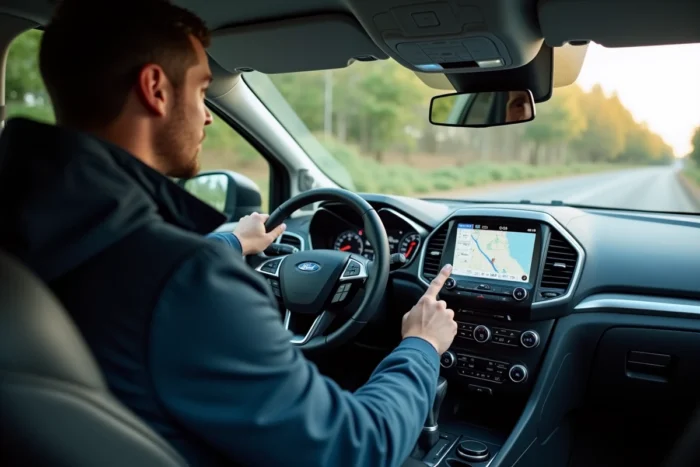
When you get into a recent Ford and the touchscreen displays your route in real time, with traffic, nearby gas stations, and weather alerts, it’s the connected navigation system that orchestrates all of this. This guide details how this technology works, its implications for your personal data, and the settings that make a difference in your daily life.
Driving Data and Privacy on Ford SYNC
Have you ever lent your vehicle to someone and found their destinations in the GPS history? This seemingly trivial detail reveals a larger mechanism. Navigation systems synchronized with a smartphone (via Bluetooth, USB, Android Auto, or Apple CarPlay) can record and store destination addresses, as well as contacts, SMS, call history, and multimedia usage profiles. This information sometimes remains stored even when the phone is no longer connected.
For an individual, this means that anyone accessing the vehicle’s touchscreen can view traces of your movements and communications. For professional fleets, the issue becomes more complicated: an employee who uses the vehicle for personal purposes leaves private data accessible to the next fleet manager.
Understanding this mechanism is the first step to effectively using connected navigation on Ford without sacrificing your privacy. The following sections detail the concrete settings to regain control.
How the SYNC System and Real-Time Navigation Work
The Ford SYNC system relies on a modem integrated into the vehicle, combined with a cloud connection. In practice, your Ford continuously sends and receives data to update traffic conditions, road work, and points of interest.

SYNC 3 and SYNC 4: What Changes for Navigation
SYNC 3 offers a touchscreen with voice commands and compatibility with Apple CarPlay / Android Auto. Navigation uses preloaded maps, updated manually via USB key or download.
SYNC 4 switches to cloud navigation. Maps are automatically updated over-the-air. The system learns your travel habits to suggest routes even before you enter a destination. This fluidity comes at a cost: more data is transmitted between the vehicle and Ford’s servers.
The Role of the Embedded Modem
The integrated modem functions like a SIM card in a phone. It ensures the connection to connected services, including the FordPass app on your smartphone. Through this app, you can remotely lock the vehicle, check the fuel level, or start navigation before getting behind the wheel.
This modem also transmits engine diagnostic data to the manufacturer. The vehicle communicates even when stationary, as long as the battery powers the system.
Regaining Control Over Your Data Without Losing Connected Services
Removing all connectivity would mean giving up real-time navigation, updates, and remote assistance. The right approach is to adjust the settings, not to cut everything off.
Removing Synced Devices and History
Each time a phone connects via Bluetooth, the SYNC system can copy the directory and call history. To clean this data:
- Access the SYNC settings via the touchscreen, then go to the “Phone” or “Connected Devices” section. Remove each device individually.
- Clear the navigation history in the “Navigation” menu then “Recent Destinations.” On SYNC 4, also check the “Favorites” synced from FordPass.
- Before selling or lending the vehicle, perform a full reset of the SYNC system from the general settings. This operation deletes all profiles, contacts, and saved destinations.
Managing Permissions for the FordPass App
The FordPass app requests access to your location, contacts, and notifications. On both Android and iOS, you can limit location access to only when the app is in use.
Disable background location sharing in your phone’s settings. Navigation on the vehicle’s screen will continue to function normally, as it relies on the built-in GPS and the embedded modem, not on your phone’s GPS.
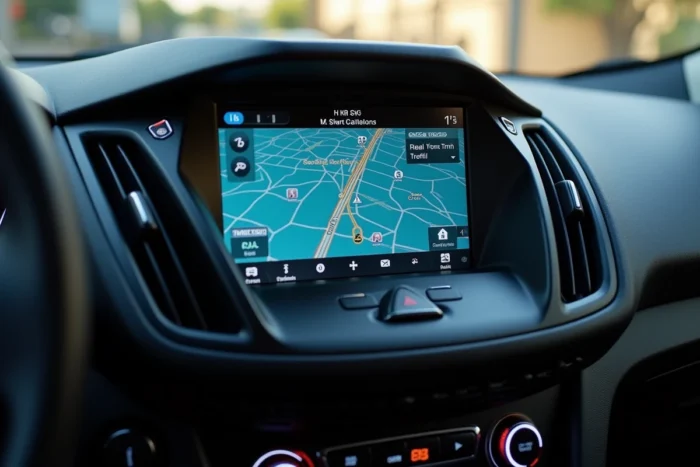
Tips for Ford Fleet Managers
When multiple drivers share the same vehicle, privacy concerns multiply. A salesperson who saves their home address as a favorite leaves their personal address accessible to the next driver. A technician who makes a personal call via the hands-free system sees the number added to the vehicle’s history.
Two measures reduce these risks without complicating daily management:
- Implement a systematic Bluetooth disconnection procedure at the end of the day. The driver removes their profile from the “Devices” menu before handing over the keys.
- Configure SYNC to not automatically download contacts when pairing Bluetooth. This setting can be found in the phone settings of the system.
- Schedule a SYNC reset during each workshop visit, along with technical maintenance.
These habits protect employees and limit the company’s responsibility regarding personal data.
Apple CarPlay, Android Auto, and Navigation on Ford: Which Mode to Choose
Using Apple CarPlay or Android Auto on the Ford touchscreen means projecting your phone’s interface. Navigation then goes through Google Maps, Waze, or Apple Maps, rather than the integrated Ford system.
The advantage: your navigation data remains on your phone. Nothing is recorded in the vehicle’s memory. For a shared vehicle, this is the simplest solution to compartmentalize usage.
The integrated Ford navigation remains smoother on the highway, with an optimized display for the large screen and better-calibrated voice alerts for cabin volume. For short urban trips, CarPlay or Android Auto often provide more responsive traffic information.
The choice depends on your priority: maximum privacy with smartphone projection, or display comfort with the native system. In both cases, the voice command button on the steering wheel works to launch a destination without taking your eyes off the road.
Connected navigation on current Fords offers a service level comparable to that of the best mobile apps. The trade-off is a data flow that deserves your attention, especially if the vehicle regularly changes drivers. A few minutes in the SYNC settings are enough to find the right balance between driving comfort and control over your personal information.